 LinkGuard
Use a redirect when an old, broken Shopify URL has a useful replacement. Verify the old path, choose a destination that matches its purpose, check Shopify's restrictions, and test the result. A redirect is not a substitute for checking whether the original product should still be published.
Choose the replacement before creating a redirect
Start with the visitor's reason for opening the old page. A customer looking for a particular part needs a compatible replacement, not a broad category with no explanation. A campaign article may have a different best destination from a discontinued product.
Record the old path, the new path, the reason for the replacement, and the person responsible. That small record makes later changes easier to review when another campaign or catalog update happens.
- Prefer a relevant replacement over a blanket homepage destination.
- Keep useful content available when retirement is unnecessary.
- Check that the new destination is published and available to the intended visitor.
Write the redirect map before opening the form
Use one row per retired URL. The examples below show how to make the visitor’s next step explicit. A path that still serves a valid page needs investigation before a redirect can apply.
| Illustrative old path | Candidate destination | Decision to verify |
|---|---|---|
| /products/canvas-tote-old | /products/canvas-tote | Equivalent replacement is published |
| /products/retired-gift-box | /collections/gift-boxes | Collection genuinely helps the same shopper |
| /collections/all | No redirect | Built-in Shopify path; not a missing saved collection |
Create the redirect in Shopify or review it in LinkGuard
For a manual desktop redirect, use Content > Menus in Shopify admin, then View URL Redirects. Choose Create URL redirect, enter the retired path in Redirect from and the verified replacement in Redirect to, then choose Save redirect.
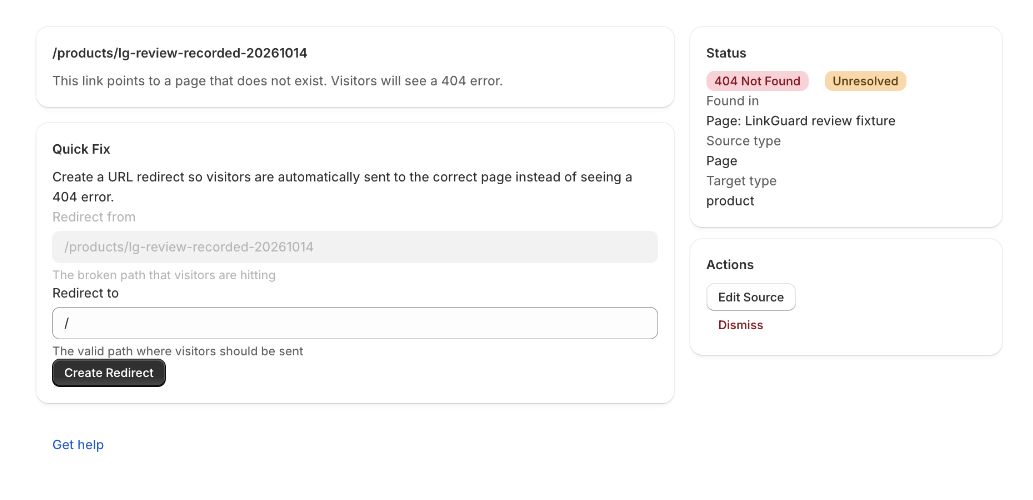
For a LinkGuard finding, use its Redirect to field and Create Redirect action after reviewing the source. Prefer a relative destination such as /products/canvas-tote for a path on the same store. Keep the original source link updated as well.
Check Shopify's redirect restrictions
Shopify redirects apply to broken paths; a path that still serves a valid page will not behave like a retired URL. Shopify also reserves routes that cannot be redirected, including some fixed collection paths. Read the current restrictions before deciding that a redirect has failed.
If the original product is supposed to remain visible, investigate its availability or source link instead. Creating redirect records around a publication problem can hide the real maintenance issue.
| Before saving | Why it matters |
|---|---|
| Old path is actually broken | A valid page can prevent the redirect from applying |
| Path is not reserved | Shopify restricts some URL prefixes and fixed routes |
| Target is relevant and live | A working redirect can still deliver a poor destination |
| Existing redirect is understood | An older rule may already explain the visitor's result |
Create and review the intended redirect
Use Shopify's current URL redirect management screen to add the old path and replacement. Review both values carefully before saving. If you are using LinkGuard for a supported finding, open the redirect workflow and confirm the same decision there.
Do not make broad changes merely because several findings look similar. Collection paths, localized storefront paths, and existing redirects can change the context. Handle ambiguous cases separately.
- Record the exact old path and relevant new destination.
- Verify that Shopify permits the source path to redirect.
- Create the redirect in Shopify or confirm the supported LinkGuard workflow.
- Open the old path as a visitor and verify the destination.
- Update internal links you control to point directly to the destination.
Test the old path and the source link
Test the old URL directly, then open a page or menu that used to link to it. Confirm that the destination is appropriate and that the visitor can continue shopping. Test relevant markets or storefront contexts when they matter to the original link.
A scan finding can help you locate a source, but it does not replace testing the visible journey. LinkGuard resolves internal resources through Shopify data rather than measuring the HTTP response of every storefront URL.
Keep a retirement checklist
Before retiring the next product, check inbound internal links, pick any replacement, and decide who will verify the change. Keep the redirect decision with the catalog work rather than rediscovering it months later.
Review again after major imports and migrations. LinkGuard can support an on-demand check of supported internal references, while a separate storefront crawl is appropriate for rendered theme links and wider HTTP coverage.
Keep a short verification record
For each redirect, record the old URL, saved destination, observed final page, date, and any market context. If the path still loads its old valid content, investigate that before repeatedly saving redirect records.
- Check the old path in a fresh session if a cached redirect makes the result unclear.
- Verify the destination directly and from the original source link.
- Test market-specific paths you actually use; do not assume one test proves every locale.
- Recheck after a later product publication or handle change.
How this guide was checked
Instructions and examples reviewed by SHWRK.
- The native redirect editor path and restrictions were checked against Shopify’s current documentation. The example paths are illustrative.
- The October 15 LinkGuard capture shows a review form, not a saved redirect or a measured change in traffic.
Sources and further reading
Shopify behavior can change. Consult the current documentation and your store settings before making changes.
See where LinkGuard fits
Review broken internal Shopify resource links, inspect their source, and choose redirects with LinkGuard. Learn how to check deleted products and changed URLs.