 LinkGuard
Start with the content and navigation that point to a changed resource. Follow the exact link on the storefront, verify the resource's publication status and redirects, then update the source or choose a relevant redirect. A missing resource reference and a live HTTP failure are not always the same thing.
Start with recent catalog changes
Deleting a product or changing its handle can leave older links in descriptions, pages, blog posts, and menus. A navigation update may fix the main menu while an older article still sends visitors to the retired path.
Make a list of recent removals and handle changes. For each old path, record the intended replacement or the decision that there is no equivalent page. This gives you a repair plan instead of a collection of unrelated redirects.
- Review high-value products and frequently visited guides first.
- Check product descriptions and older promotional content.
- Separate internal store links from destinations on other websites.
Test the exact path before calling it broken
Open the exact storefront URL as a visitor and follow its behavior. Check whether a redirect already takes it to useful content. If the destination is a product, verify publication to the relevant sales channel and market as well as its presence in admin.
Built-in Shopify routes such as /collections/all can work without a saved collection with that handle. A product can also appear in a collection-scoped URL. Treat these as cases to resolve, not automatic evidence of a missing resource.
| Observation | Check next | Possible response |
|---|---|---|
| Product exists in admin | Is it published to the visitor's storefront? | Review availability |
| Old URL redirects | Does the destination match the visitor's intent? | Keep it or improve the target |
| URL shows a missing page | Is there an equivalent replacement? | Update the source and consider a redirect |
| External URL fails | Who controls the destination? | Use an external HTTP check and edit the source |
Example: an older care guide links to a retired product
Suppose /pages/canvas-care links to /products/canvas-tote-old, which now returns a missing page. A suitable replacement is /products/canvas-tote. These are illustrative paths; check publication and the exact storefront URL in your own store.
Open the care page, follow its original link, and inspect the destination. Then open the replacement directly. A product existing in admin does not prove it is visible in the visitor’s market or sales channel.
| Check | Before repair | Intended after repair |
|---|---|---|
| Care-page link | /products/canvas-tote-old | Links directly to /products/canvas-tote |
| Old bookmarked URL | Missing product page | Redirects to the relevant replacement |
| Replacement product | Availability must be checked | Loads for the intended visitor |
Choose between fixing the source and redirecting
If you control a source link, updating it to the right destination gives future visitors a direct path. A redirect can also preserve older links in bookmarks, messages, and other sites. These actions serve related purposes and may both be useful.
Choose a destination that answers the original intent. A replacement product or a relevant collection is often more useful than sending every retired URL to the homepage. If there is no relevant replacement, do not create a misleading route just to reduce a count.
- Identify the source page and the intended destination.
- Update the source link where you can.
- Review Shopify's redirect restrictions before adding a redirect.
- Test the old path and the updated source as a visitor.
Open the source and chosen redirect in LinkGuard
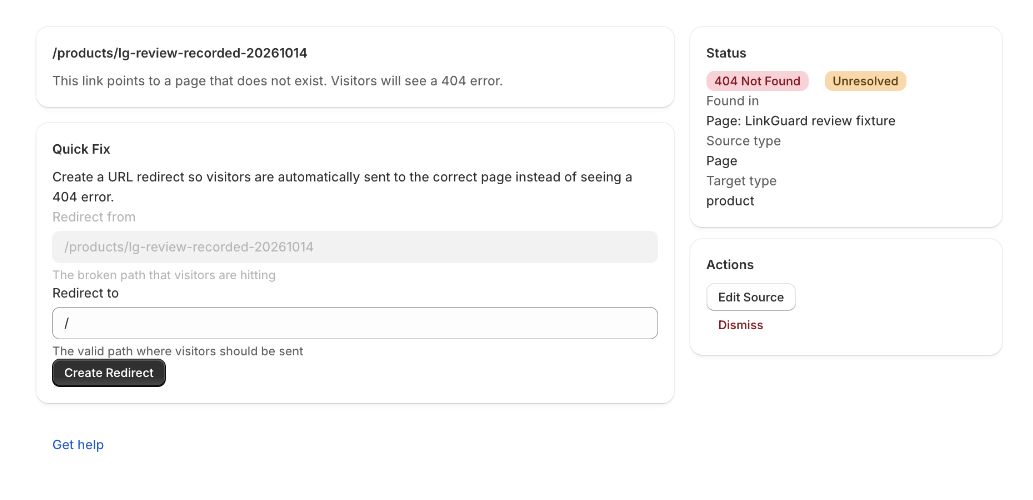
Run a scan and open the finding for the old path. Review Found in and Source type, then use Edit Source to inspect the page containing the link. In the example, update the care-page link directly to the replacement.
If the old path also needs a redirect, enter the relevant replacement under Redirect to and choose Create Redirect. Review the destination yourself; the form’s default / is not a recommendation to send every retired product to the homepage.
LinkGuard checks supported internal Shopify resource references. It does not perform a full storefront HTTP crawl or test arbitrary external destinations. Follow the saved storefront path as a visitor to verify the customer experience.
Recheck after the catalog is saved
After the change, follow the source link, test the old URL, and run another scan. Record why any remaining exception is intentional. A dismissed issue can reappear if its source remains broken.
Include a link review in catalog-retirement and content-editing checklists. LinkGuard's scans are on demand; do not assume scheduled monitoring is running between checks.
- Reopen the source page and follow the updated link.
- Open the old URL separately and confirm the final destination is relevant.
- Check the replacement page in the intended market and sales channel.
- Run another LinkGuard scan and investigate remaining findings rather than dismissing them to lower a count.
How this guide was checked
Instructions and examples reviewed by SHWRK.
- Shopify redirect behavior was checked against the linked platform documentation. LinkGuard source links and redirect controls were checked against the current implementation.
- The care-page paths are illustrative. The October 15 screenshot shows an actual development-store finding and an unsubmitted redirect form; it does not prove a repair was completed.
Sources and further reading
Shopify behavior can change. Consult the current documentation and your store settings before making changes.
See where LinkGuard fits
Review broken internal Shopify resource links, inspect their source, and choose redirects with LinkGuard. Learn how to check deleted products and changed URLs.